A Security Group acts as a virtual firewall at the instance level to control inbound and outbound traffic.
In this section, we will create 3 separate Security Groups for each component in our architecture:
Bastion Host: Allows secure SSH access from the outside.
Backend: Receives traffic from the Load Balancer and allows administration from the Bastion Host.
Application Load Balancer (ALB): Receives public traffic from users.
🔒 Execution Steps
1. Create Security Group for the Bastion Host (project-bastion-host-sg)
This is the protection layer for the Bastion Host, allowing us to connect to it securely from the Internet.
Step 1: Start Creating the Security Group
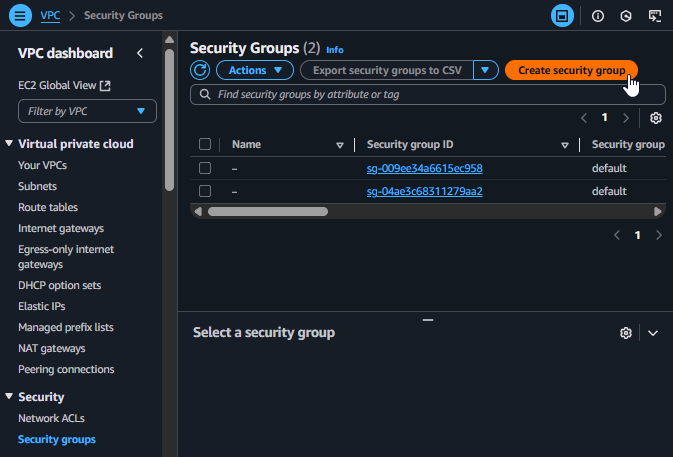
From the VPC Dashboard, select Security Groups from the left menu.
Click on Create security group.
Create a new Security Group
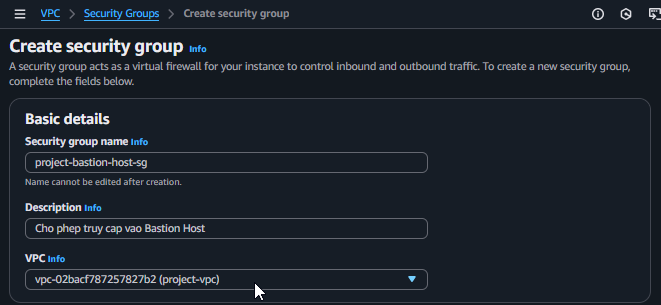
Step 2: Configure Basic Information
Security group name:project-bastion-host-sg
Description:Allow access to Bastion Host
VPC: Select the project-vpc created in the previous step.
Basic information for the Bastion Host SG
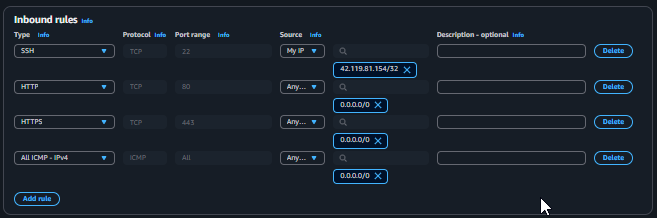
Step 3: Set up Inbound Rules
Click Add rule and configure the following rules:
Type
Protocol
Port range
Source
Description
SSH
TCP
22
My IP
Allows you to connect via SSH from your current IP.
HTTP
TCP
80
Anywhere-IPv4
Allows HTTP access from anywhere.
HTTPS
TCP
443
Anywhere-IPv4
Allows HTTPS access from anywhere.
All ICMP-IPv4
All
All
Anywhere-IPv4
Allows ping to check connectivity.
Configuring Inbound Rules for the Bastion Host SG
Step 4: Scroll down and click Create security group.
2. Create Security Group for the Backend (project-backend-sg)
This protection layer only allows access from the Application Load Balancer and the Bastion Host, ensuring the backend servers are not directly accessible from the Internet.
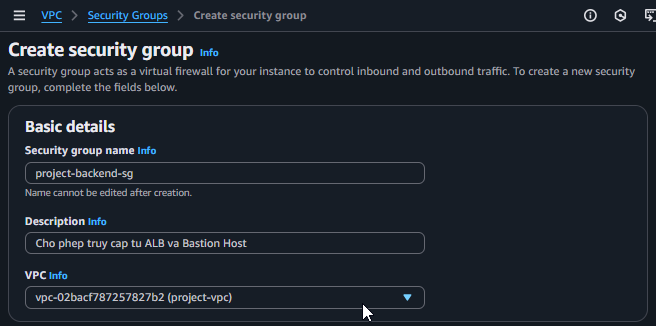
Step 1: Configure Basic Information
Click Create security group again.
Security group name:project-backend-sg
Description:Allow access from ALB and Bastion Host
VPC: Select the project-vpc.
Basic information for the Backend SG
Step 2: Set up Inbound Rules
Click Add rule and configure the following rules:
Type
Protocol
Port range
Source
Description
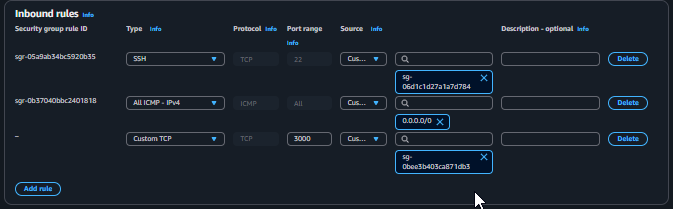
Custom TCP
TCP
3000
Custom -> project-alb-sg
Allows the ALB to send traffic to the backend application.
SSH
TCP
22
Custom -> project-bastion-host-sg
Allows SSH connection from the Bastion Host for administration.
All ICMP-IPv4
All
All
Anywhere-IPv4
Allows ping to check connectivity.
When selecting the Source, type sg- into the search box, and AWS will display a list of available Security Groups for you to choose from.
Configuring Inbound Rules for the Backend SG
Step 3: Click Create security group.
3. Create Security Group for the Application Load Balancer (project-alb-sg)
This protection layer allows users from the Internet to access our application through the ALB.
Step 1: Configure Basic Information
Click Create security group.
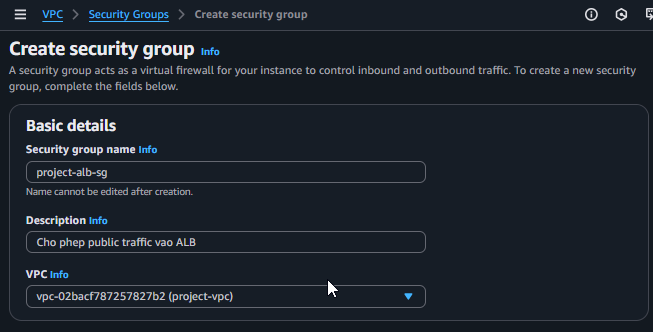
Security group name:project-alb-sg
Description:Allow public traffic to ALB
VPC: Select the project-vpc.
Basic information for the ALB SG
Step 2: Set up Inbound Rules
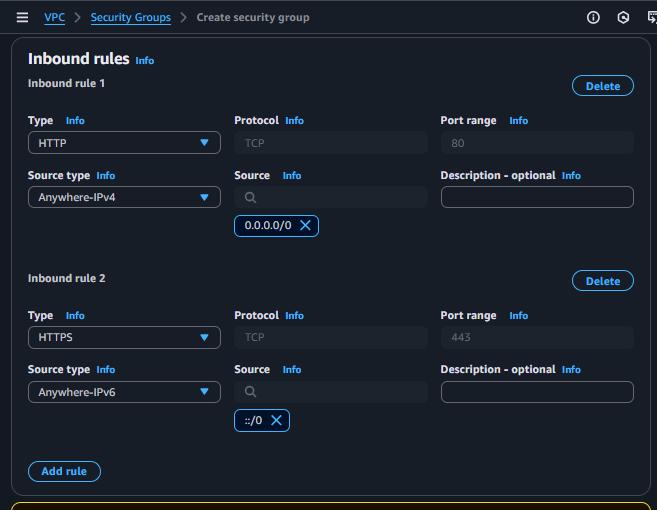
Click Add rule and configure the following rules:
Type
Protocol
Port range
Source
Description
HTTP
TCP
80
Anywhere-IPv4
Allows users to access via HTTP.
HTTPS
TCP
443
Anywhere-IPv4
Allows users to access via HTTPS.
Configuring Inbound Rules for the ALB SG
Step 3: Set up Outbound Rules
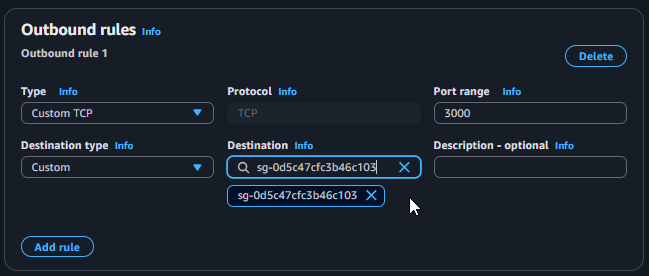
The ALB needs to send traffic to the backend on port 3000. By default, Outbound Rules allow all traffic out, but for better security, we should restrict this.
Select the Outbound rules tab -> Edit outbound rules.
Delete the default rule and Add rule with the following:
Type
Protocol
Port range
Destination
Description
Custom TCP
TCP
3000
Custom -> project-backend-sg
Allows the ALB to send traffic to the backend servers.
Configuring Outbound Rules for the ALB SG
Step 4: Click Save rules, then click Create security group.
After completion, you will have 3 Security Groups ready to be assigned to their corresponding resources.