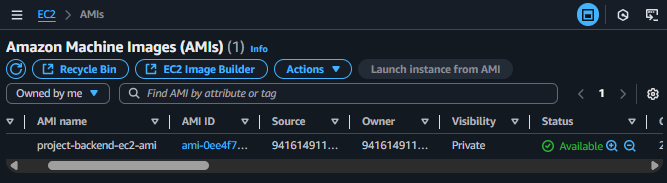
Create Amazon Machine Image (AMI)
Create an AMI from the Backend Instance
ℹ️ Objective
- An Amazon Machine Image (AMI) is a complete “snapshot” or backup of an EC2 instance, including the operating system, configuration, and data.
- The main purpose of creating an AMI in this workshop is to have a standard “template” for the backend server. This template will be used by the Launch Template and Auto Scaling Group to automatically create identical copies of the backend server when scaling is needed.
🔒 Execution Steps
1. Select the Source EC2 Instance
- In the EC2 Dashboard, navigate to Instances.
- From the list, select the
project-backend-ec2instance.
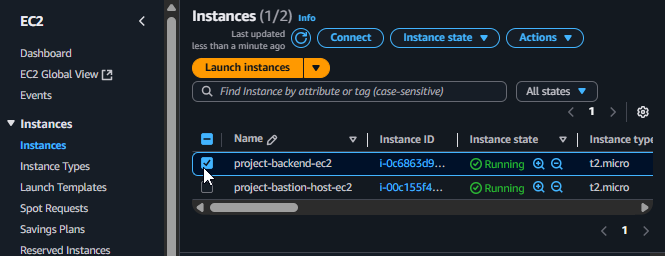
Select the Backend EC2 Instance
2. Start the Image Creation Process
- After selecting the instance, click on the Actions menu.
- Select Image and templates.
- Select Create image.
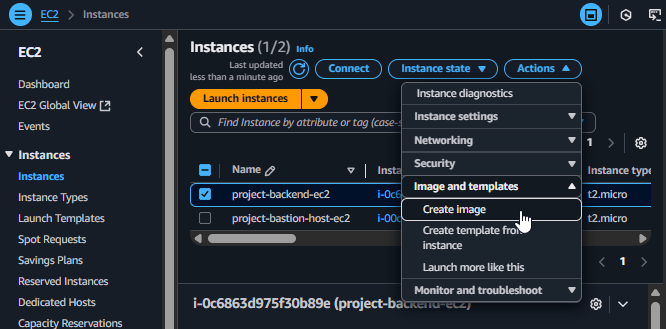
Starting to create an Image from the Actions menu
3. Configure the AMI Information
- On the Create image page, fill in the following information:
- Image name:
project-backend-ec2-ami - Image description:
project-backend-ec2-ami
- Image name:
- Other options can be left at their default values.
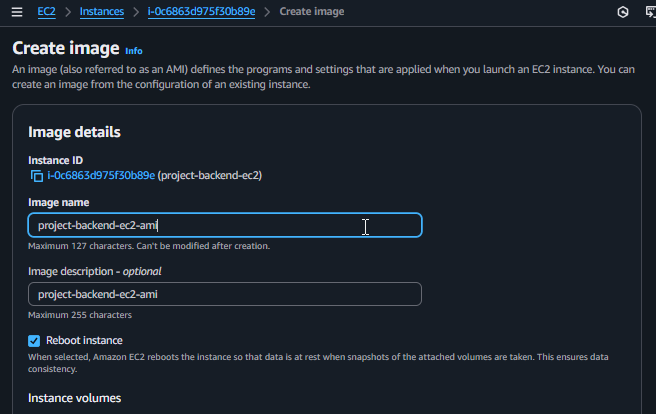
Filling in the configuration information for the AMI
4. Finalize and Check the Status
Scroll down and click Create image.
You will receive a notification that the AMI creation process has started.
To monitor the progress:
- In the left menu, under Images, select AMIs.
- You will see the
project-backend-ec2-amiAMI with apendingstatus. - This process may take a few minutes. Wait until the Status changes to
Available.