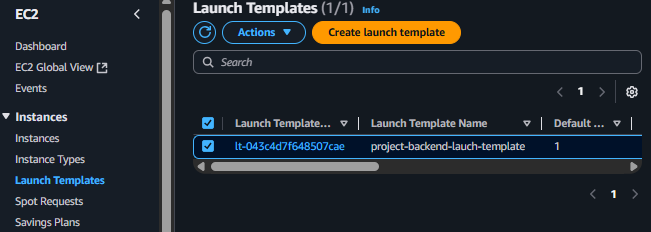
Create Launch Template for Auto Scaling
Initialize Launch Template
ℹ️ Objective
- A Launch Template acts as a detailed “blueprint” for launching EC2 instances. It stores all necessary configuration parameters such as the AMI, instance type, key pair, security groups, and network settings.
- Our goal is to create a Launch Template that uses the backend server’s AMI (
project-backend-ec2-ami) created in the previous step. The Auto Scaling Group will rely on this blueprint to automatically launch new instances consistently and accurately.
🔒 Execution Steps
1. Access Launch Templates
- From the EC2 Dashboard, in the left menu, scroll down and select Launch Templates.
- Click on Create launch template.
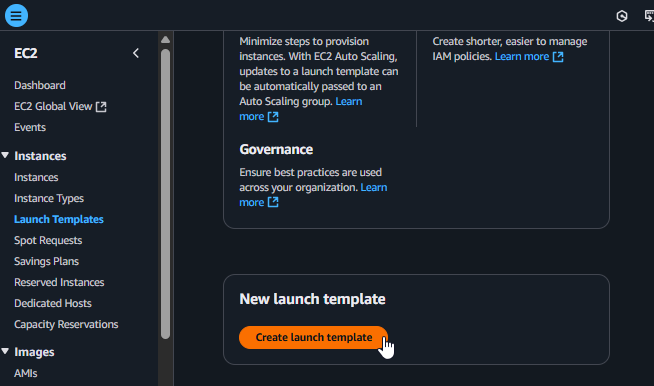
Starting to create a Launch Template
2. Configure Basic Information
- Launch template name:
project-backend-lauch-template - Template version description:
Template for weather project backend servers
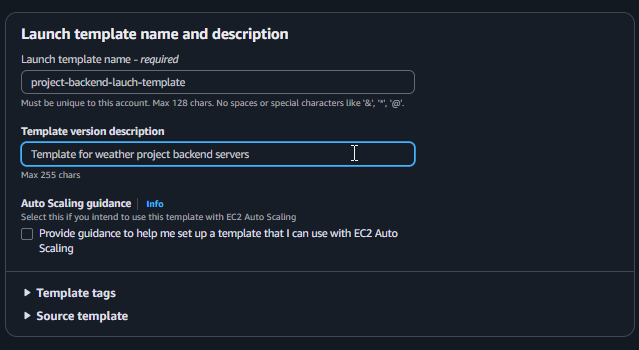
Filling in basic information for the Launch Template
3. Select AMI (Amazon Machine Image)
- In the Application and OS Images (Amazon Machine Image) section, select the My AMIs tab.
- Select Owned by me, and you will see the AMI created in the previous step. Select
project-backend-ec2-ami.
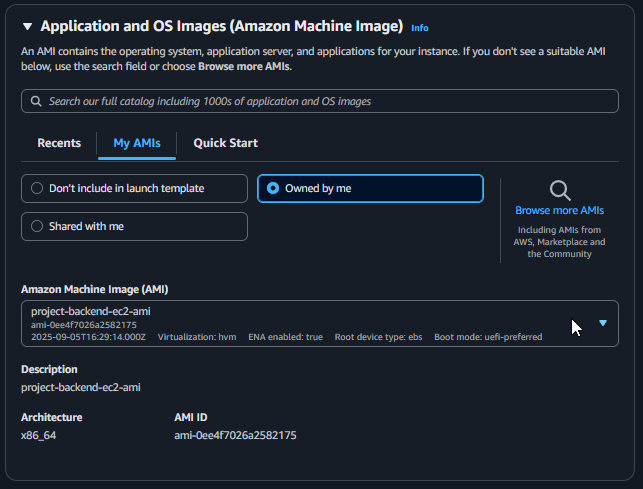
Selecting the created AMI
4. Select Instance Type and Key Pair
- Instance type: Select
t2.micro. - Key pair (login): Select
project-keypairfrom the dropdown list.
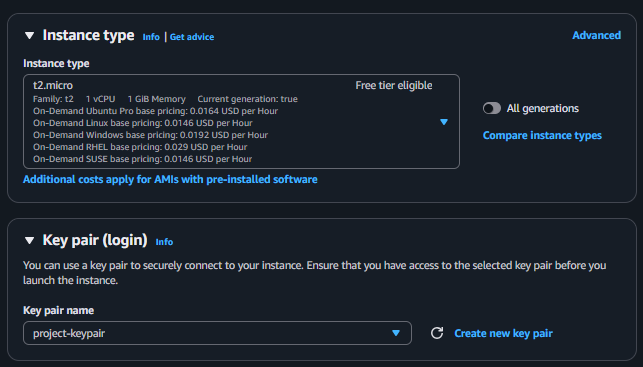
Selecting the Instance Type and Key Pair
5. Configure Network Settings
- In the Network settings section, we will specify the Security Group.
- Security groups: Select Select existing security group.
- In the Common security groups list, select
project-backend-sg.
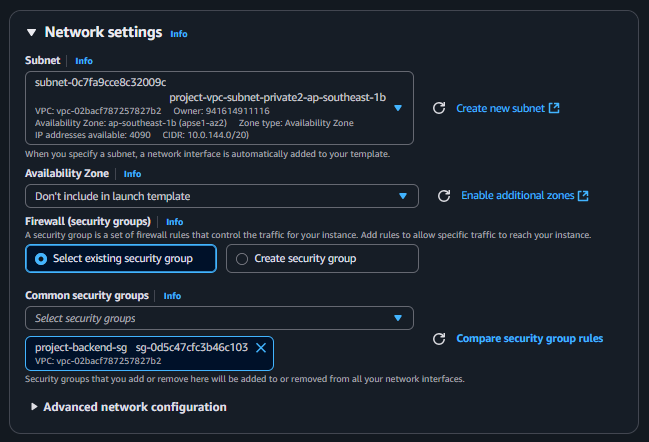
Configuring the Security Group
6. Finalize and Review the Launch Template
- Review all the configured information.
- Scroll down and click Create launch template.
- After it’s created successfully, click View launch templates to see the template you just created in the list.
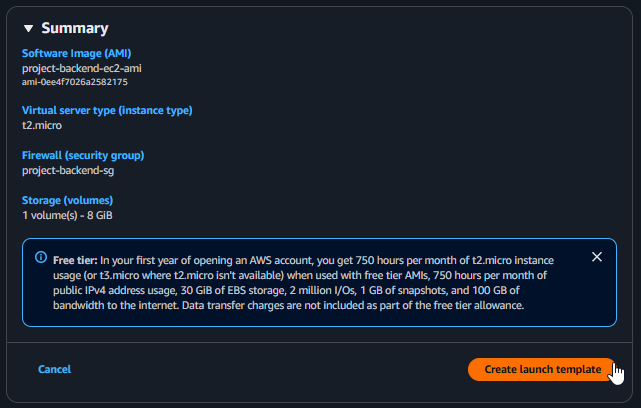
Launch Template created successfully